Setting up your account and organization
Last updated August 7, 2026
Step 1: Create your account
On the signup page you have three options:
- Continue with Google
- Continue with Microsoft
- Email and password (at least 8 characters)
All three create the same kind of account. If you sign up with email, you'll also use it to sign in later; with Google or Microsoft, you sign in with that provider each time.
Signing up through a company Microsoft account
If your IT administrator hasn't approved PassportCraft for your Microsoft directory, the sign-in may be blocked with a message explaining why. You can ask your admin to approve it — or just sign up with email instead.
Step 2: Work through the onboarding wizard
After signup you land in a short setup wizard. It takes a couple of minutes, and what you enter here pre-fills every passport you create afterwards. The steps are:
- Welcome — a quick overview of what you're about to set up.
- Product type — the question "What do you make?". Select every type that applies. Textile & Apparel, General Goods, and Batteries are available today; types marked Soon (Electronics, Furniture, Cosmetics) are saved to your account and unlock automatically when they launch.
- Organization — your organization name and country (both required), plus optional legal manufacturer name, registered address, and contact email. This is what shoppers see when they scan a product's QR code, and it fills in the manufacturer fields for you.
- EU compliance — your EORI number and EU responsible person, both optional. You can publish without them and add them later.
- Branding — upload a logo and pick a primary color for your public passport pages.
- Finish — a summary of everything that was set up.
If you use the Continue button on the Organization step, both the organization name and country are required to proceed. The Skip setup button in the top corner bypasses the full wizard — it stops only at the Organization step if the name is missing, and country is not required on that path.
What you start with
Finishing onboarding creates your organization with you as its Owner, and sets up three things:
- A 14-day Pro trial. Pro features are active immediately — you can publish up to 500 passports during the trial, and white-label branding is unlocked.
- A sample passport. A fully filled textile draft sits in your dashboard so you can see what a finished Digital Product Passport looks like. Edit it, or delete it whenever you like.
- Manufacturer defaults. The company details you entered pre-fill the manufacturer section of every new passport. You can override them per passport.
From here, the natural next step is creating your first passport. If you want the bigger picture first, our step-by-step guide to creating a Digital Product Passport covers the whole process.
Your organization settings
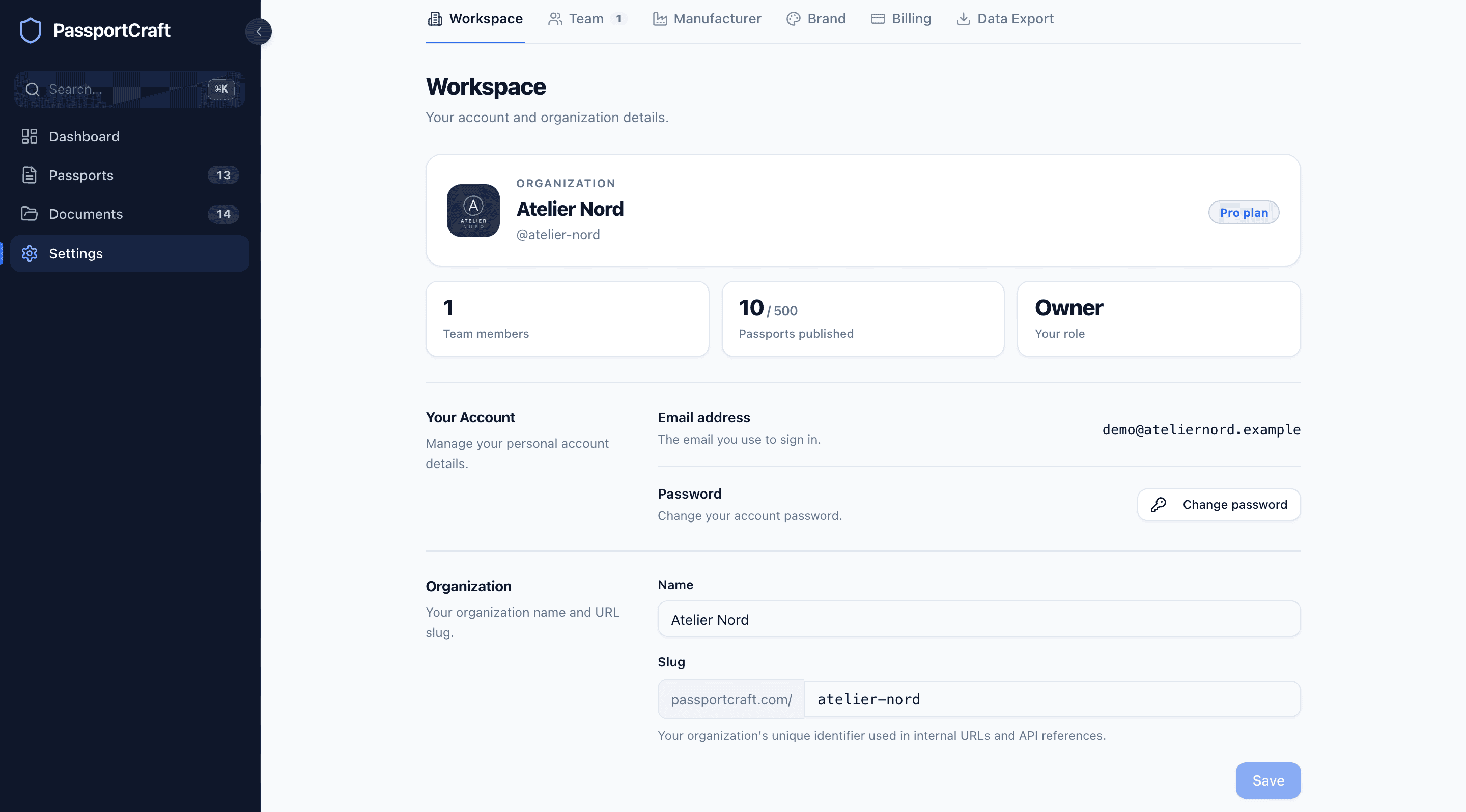
Everything about your organization lives under Settings, organized into seven tabs: Workspace, Team, Manufacturer, Brand, Billing, Data Export, and API keys. Organization settings and team roles tours each tab and explains what the four team roles can do.
The trial state
While your trial is active, the Billing page shows how many days remain. When it ends, your account moves to the Free plan: you can publish up to 3 passports, and drafts are untouched — nothing is deleted. If you have more than 3 published passports at that point, see Publishing a passport for how publish limits work across plans.
You can pick a plan at any time in Settings → Billing — before or after the trial ends.
Frequently asked questions
Do I need a credit card to sign up?
No. Signup is free and the signup form says so: no credit card required. Every new organization starts on a 14-day Pro trial, and you only add payment details if you choose a paid plan.
What happens when my Pro trial ends?
Your account moves to the Free plan, which covers 3 published passports. Nothing is deleted — your drafts and data stay exactly as they are, and you can upgrade in Settings → Billing whenever you're ready.
Can I change the details I entered during onboarding?
Yes. Everything from onboarding lives in Settings: your organization name under Workspace, manufacturer and EU compliance details under Manufacturer, and your logo and colors under Brand.