Importing products from a CSV

Last updated June 13, 2026

Step 1: Open the importer

From the Passports page, click Import CSV. You'll also find the same flow behind the Bulk import option when creating a new passport. Importing requires the editor role or higher; viewers can't create passports.

Step 2: Pick a product category

The importer first asks for the Product category — Textile / Apparel or General Product. One import handles one category, because the category determines which columns exist. If you sell both, run two imports.

Step 3: Start from a template

Once a category is selected, expand "Need a CSV template? Download one to get started." Three downloads are available:

The import screen with Textile / Apparel selected, the CSV drop zone, and the expanded template helper showing three download buttons.
After picking a category, drop your CSV in the upload area — or download a template to start from.
  1. Download Template (Required Fields) — just the columns needed for a complete passport. Required fields are marked with *.
  2. Download Template (All Fields) — every column the category supports.
  3. Download Example (5 products) — a filled-in sample so you can see the expected formats.

Open the template in Excel or Google Sheets, fill in your product data, and save it as CSV. A few fields use compact formats:

  • Material compositionfiber:percentage pairs separated by semicolons, for example cotton:95;elastane:5. An optional third number is the recycled share of that fiber: cotton:95:30 means 95% cotton, of which 30% recycled.
  • List fields (care symbols, compliance standards, and other multi-value columns) — separate values with semicolons.
  • Choice fields — use either the stored value or its English label; both are accepted.

You don't need to keep the template's exact headers, because there's no manual mapping step: the importer matches your column headers to passport fields automatically, by field label or field name. Matching is forgiving — capitalization, surrounding spaces, and the trailing * from the template are ignored. Columns it can't match are skipped, and you'll see a warning naming each skipped column so renamed headers don't fail silently.

This means you can also export from your own systems: as long as the headers match the template's column names, the file imports.

File limits

CSV files only, UTF-8 encoded, up to 10,000 rows and 50MB per file. Larger catalogues just take multiple files.

Step 4: Review the validation results

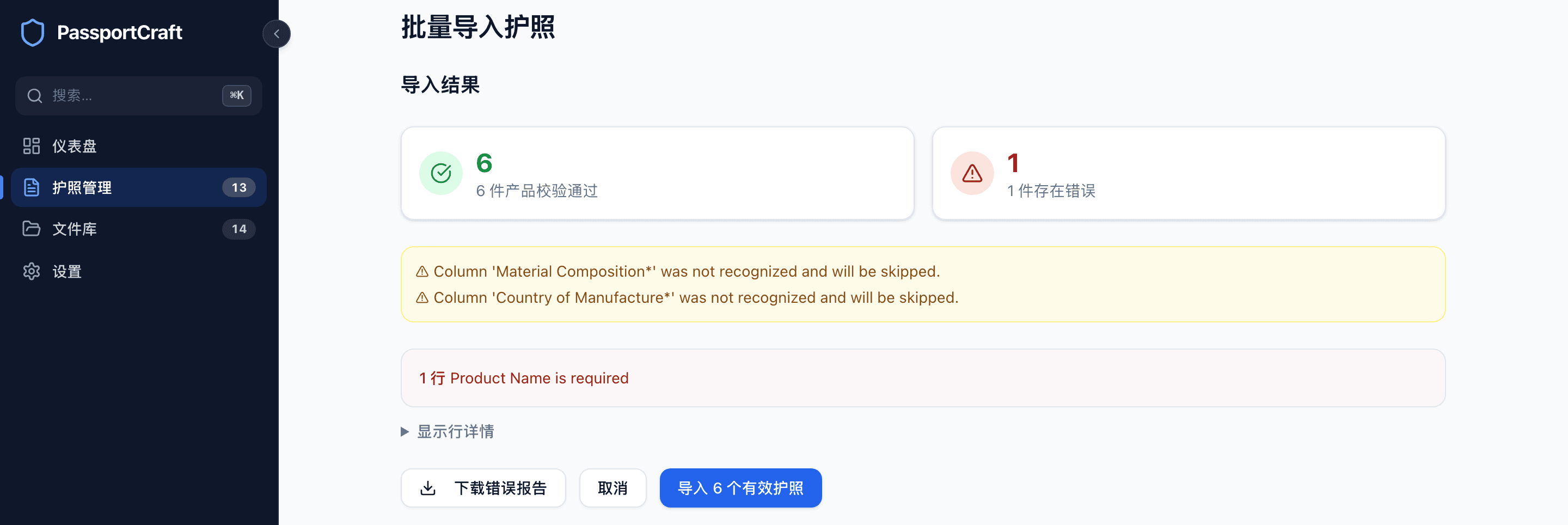
After upload, every row is validated with the same checks the editor runs. A row needs the fields marked * in the template to import (GTIN is the exception: it's only required later, at publish). The Import Results screen splits your file in two:

  • "N products ready" — rows that passed validation.
  • "N have errors" — rows that didn't, shown in a table with the row number, product, and what's wrong (a composition that doesn't sum to 100%, an invalid country, a malformed GTIN, and so on; see Completeness and validation for the full set of checks).
The Import Results screen showing 5 products ready, 2 with errors, the specific error messages, and Download Error Report and Import 5 Valid Passports buttons.
The Import Results screen separates valid rows from rows with errors, and names what's wrong with each.

Click Download Error Report to get the failed rows as a CSV with an error column, fix them in your spreadsheet, and import that file again. Importing the valid rows now and the fixed rows later works fine; the two batches just become drafts side by side.

When you're ready, click Import N Valid Passports. Large files are sent in batches of 500 automatically, with a progress indicator.

What happens after import

Every imported row becomes a draft passport: "All imported as drafts. Review them in your passport list, then publish when ready." From there the normal lifecycle applies — drafts are private and unlimited, and each passport is published individually once its required fields are complete. See Drafts vs published passports for how the two states work.

The success screen also reminds you where you stand against your plan: drafts never count toward your publish limit, so importing 1,000 products on a Free plan is fine; you can publish up to 5 of them until you upgrade. Publishing itself, including limits per plan, is covered in Publishing a passport.

Imported drafts still need review

Import validation checks structure, not substance — it can't tell whether row 14's composition belongs to the product in row 14. Open a sample of your imported drafts and confirm the data landed in the right fields before you start publishing at volume.

Frequently asked questions

Do imported products get published automatically?

No. Every imported row becomes a draft. Drafts are unlimited and private — you review them in your passport list and publish each one when it's ready.

What happens to rows with errors?

They're held back. The results screen shows what's wrong in each row, and you can download an error report CSV, fix the rows in your spreadsheet, and import just those rows again. Valid rows import normally either way.

Do I need a GTIN in my CSV?

Not for the import itself: rows without a GTIN import fine as drafts. You'll need to add a GTIN before publishing each passport, so including a GTIN column up front saves a step later.