Organisationseinstellungen und Team-Rollen
Zuletzt aktualisiert am 24. Oktober 2026
Die zehn Einstellungsbereiche
| Bereich | Was sich darin befindet |
|---|---|
| Arbeitsbereich | Ihre Konto-E-Mail und Ihr Passwort, der Organisationsname und die Organisations-ID, auf die sich Ihre API-Anfragen beziehen |
| Hersteller | Standard-Herstellerangaben und die Felder zur EU-Konformität (EORI-Nummer, EU-Verantwortlicher), die jeden neuen Produktpass vorfüllen |
| Marke | Logo, Markenfarben und der Schalter "Bereitgestellt von PassportCraft" für öffentliche Seiten; geändert von Inhabern und Administratoren |
| Sprachen | In welchen Sprachen Ihre öffentlichen Produktpässe veröffentlicht werden — geändert von Inhabern und Administratoren |
| Eigene Domain | Eine Subdomain, die Ihnen gehört, damit Produktpass-Seiten und QR-Codes Ihre Domain statt passportcraft.com tragen — ab dem Pro-Tarif, geändert von Inhabern und Administratoren |
| Team | Die Mitgliederliste, die Rollenverwaltung und Einladungen |
| Abrechnung | Aktueller Tarif, Nutzungsanzeigen und der Tarifvergleich — für Betrachter ausgeblendet |
| Verbindungen | Die mit Ihrem Arbeitsbereich verbundenen Assistenten (zum Beispiel ChatGPT oder Claude): wann jeder verbunden und zuletzt verwendet wurde, was ein verbundener Assistent darf, und eine Schaltfläche Trennen — für Betrachter ausgeblendet |
| API-Schlüssel | Zugangsdaten für die PassportCraft-API: erstellen, rotieren und widerrufen sowie sehen, wann jeder zuletzt verwendet wurde — für Betrachter ausgeblendet |
| Datenexport | Laden Sie Ihre Produktpass-Daten als CSV, JSON-LD oder QR-Codes herunter — für Betrachter ausgeblendet |
Die meisten davon sind anfangs aus dem Einrichtungsassistenten gefüllt — siehe Konto und Organisation einrichten — und alles, was dort eingegeben wurde, lässt sich hier später ändern.
In einer Partnerorganisation, die die Arbeitsbereiche anderer Marken verwaltet, sehen Inhaber und Administratoren zusätzlich Kundenabrechnung und Partnerbedingungen; siehe Kunden verwalten. Im eigenen Arbeitsbereich des Partners, seinem Demo-Bereich, gibt es keinen Bereich Eigene Domain. Eine eigene Domain richtet ein Partner stattdessen im Arbeitsbereich eines Kunden ein. Solange seine Partnervereinbarung gilt, hat der Demo-Bereich feste Limits, und für ihn lässt sich kein Tarif kaufen.
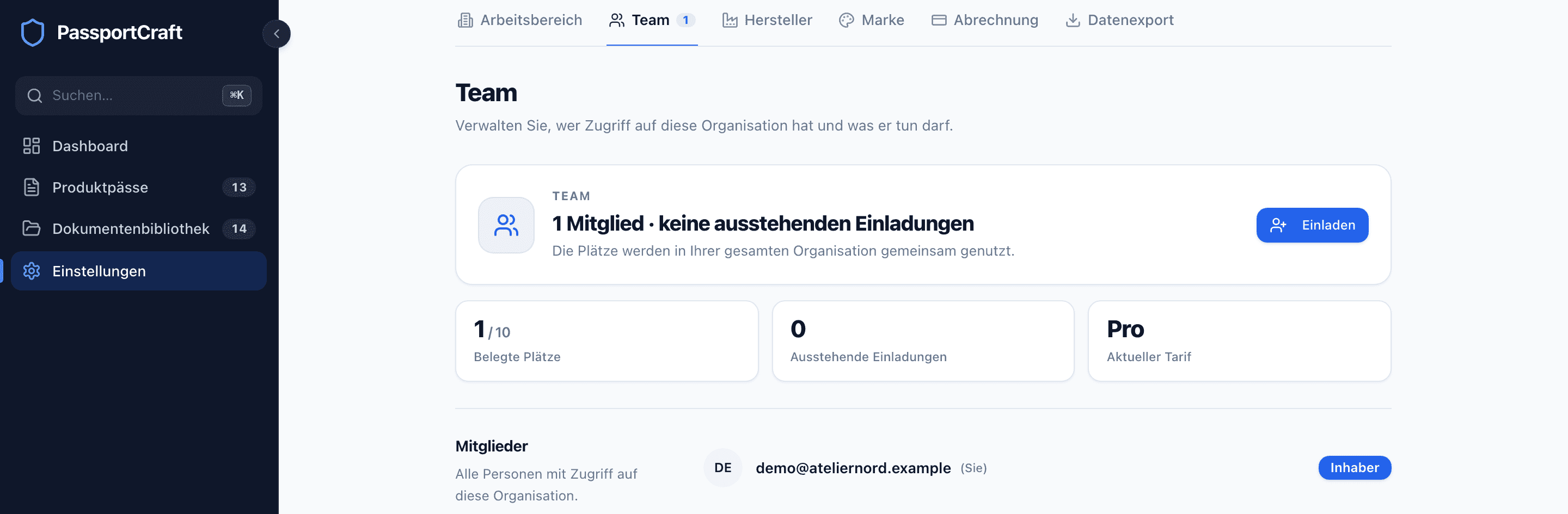
Die vier Rollen
| Betrachter | Bearbeiter | Administrator | Partner | Inhaber | |
|---|---|---|---|---|---|
| Produktpässe und Einstellungen ansehen | Ja | Ja | Ja | Ja | Ja |
| Produktpässe erstellen, bearbeiten, importieren | Nein | Ja | Ja | Ja | Ja |
| Veröffentlichen und zurückziehen | Nein | Ja | Ja | Ja | Ja |
| KI-Hilfen nutzen | Nein | Ja | Ja | Ja | Ja |
| Produktpässe im Papierkorb endgültig löschen | Nein | Nein | Ja | Ja | Ja |
| Mitglieder einladen, entfernen und Rollen ändern | Nein | Nein | Ja | Ja | Ja |
| Abrechnung und Abonnement verwalten | Nein | Nein | Ja, außer wenn der Partner zahlt | Ja, außer wenn der Partner zahlt | Ja, außer wenn der Partner zahlt |
| API-Schlüssel erstellen, rotieren und widerrufen | Nein | Nein | Ja | Ja; nur hier von Mitarbeitenden ihres Partners erstellte Schlüssel rotieren | Ja |
| Einen Assistenten verbinden und trennen | Nein | Ja | Ja | Ja | Ja |
| Markeneinstellungen, eigene Domain und Veröffentlichungssprachen ändern | Nein | Nein | Ja | Ja | Ja |
Solange ein Partner den Tarif dieses Arbeitsbereichs bezahlt, ist Abrechnung für jede Rolle ausgeblendet, auch für den Inhaber.
Einige Details, die Sie kennen sollten:
- Betrachter ist im gesamten Produkt schreibgeschützt: Betrachter können Produktpässe und die meisten Einstellungen öffnen, aber nichts ändern, und vier Bereiche — Abrechnung, Datenexport, API-Schlüssel und Verbindungen — sind für sie vollständig ausgeblendet. Sie erscheinen nicht in der Liste unter Einstellungen in der Seitenleiste, und wer eine dieser Adressen direkt aufruft, landet stattdessen im Arbeitsbereich.
- Bearbeiter erledigt die alltägliche Produktpass-Arbeit, einschließlich des Verschiebens von Produktpässen in den und aus dem Papierkorb. Bearbeiter können die Seiten Abrechnung, Datenexport und API-Schlüssel sehen, aber weder den Tarif ändern noch einen Schlüssel ausstellen. Unter Verbindungen können sie die Zugriffsanfrage eines Assistenten genehmigen und ihn wieder trennen, und die Bereiche Marke, Eigene Domain und Sprachen können sie lesen, ohne dort etwas zu ändern.
- Inhaber ist die Person, die die Organisation erstellt hat. Es gibt genau einen, die Rolle kann niemand anderem zugewiesen werden, und der Inhaber kann nicht aus der Teamliste entfernt oder in seiner Rolle geändert werden.
- Die Rolle Partner gehört den Mitarbeitenden eines Partnerunternehmens, das Ihren Arbeitsbereich verwaltet (siehe Mit einem Partner arbeiten). Wer diese Rolle hat, kann alles, was ein Administrator kann, außer Inhaber werden, die Zusammenarbeit beenden oder Abrechnung öffnen, solange der Partner Ihren Tarif bezahlt. Andere Partnermitarbeitende können stattdessen Betrachter- oder Bearbeiterzugriff haben. Personen mit der Rolle Partner können keinen Schlüssel rotieren, den das eigene Team des Arbeitsbereichs erstellt hat. Auch Schlüssel, die mit
keys:adminZugriffe verwalten oder auf andere Arbeitsbereiche zugreifen, können nur die eigenen Inhaber oder Administratoren des Arbeitsbereichs rotieren. - Niemand kann seine eigene Mitgliedschaft über den Bereich Team ändern oder entfernen.
Ihr Partner legt die Zugriffsstufe jeder Person fest. Sie können diese im Bereich Team nicht ändern. Nur der eigene Inhaber oder die eigenen Administratoren Ihres Arbeitsbereichs können einzelne Partnermitarbeitende entfernen. Partnermitarbeitende können hier keine Kollegen entfernen, auch nicht mit Administratorzugriff.
Die Entfernung gilt für diese Zusammenarbeit, bis Ihr eigener Inhaber oder Ihre eigenen Administratoren unter Einstellungen → Team auf Wieder zulassen klicken. Inhaber und Administratoren des Partners erhalten dann sofort wieder Zugriff. Andere Mitarbeitende kann der Partner danach erneut zuweisen; die Freigabe allein stellt ihren Zugriff nicht wieder her.
Ein Teammitglied einladen
Sie benötigen die Rolle Administrator oder Inhaber und einen freien Platz: Mitglieder plus ausstehende Einladungen zählen zu den Plätzen Ihres Tarifs (1 bei Free, 3 bei Starter, 10 bei Pro, unbegrenzt bei Scale; siehe Tarife und Veröffentlichungslimits).
- Gehen Sie zu Einstellungen → Team und klicken Sie auf Einladen.
- Geben Sie die E-Mail-Adresse der Person ein und wählen Sie eine Rolle — Administrator, Bearbeiter oder Betrachter (Standard).
- Klicken Sie auf Einladung senden. Die Einladung landet mit einem Annahmelink in deren Postfach.
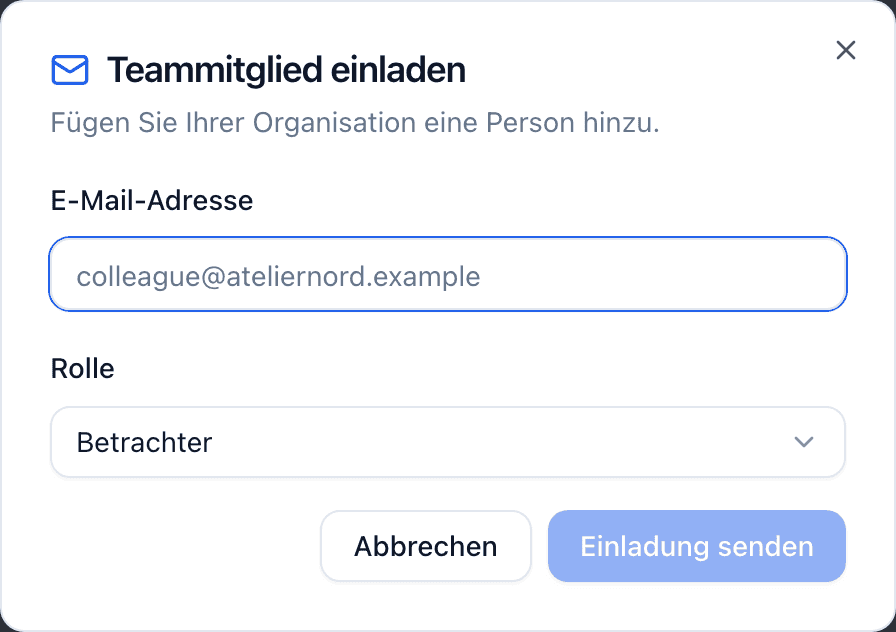
Die Einladung erscheint nun unter Ausstehende Einladungen mit ihrem Ablaufdatum; Einladungen gelten 7 Tage. Von dort können Sie den Einladungslink kopieren (denselben Link, den die E-Mail enthält, nützlich, wenn die E-Mail in einem Spam-Filter hängt oder Sie sie lieber per Chat teilen) oder die Einladung abbrechen, was den Link ungültig macht.
Wenn die E-Mail nicht gesendet werden konnte, sehen Sie "Einladung erstellt, aber E-Mail konnte nicht gesendet werden. Kopieren Sie den Link zum manuellen Teilen." Die Einladung ist weiterhin gültig; nur die Zustellung ist fehlgeschlagen.
Was der Eingeladene sieht
Der Einladungslink öffnet eine Seite, die Ihre Organisation und die angebotene Rolle nennt:
- Abgemeldet: Die Person wird gebeten, ein Konto zu erstellen (mit vorausgefüllter eingeladener E-Mail) oder sich anzumelden und dann zum Annehmen zurückzukehren.
- Angemeldet: Die Person prüft die Details und klickt auf Annehmen und landet anschließend auf dem Dashboard Ihrer Organisation.
Die Annahme ist an die eingeladene Adresse gebunden: Ein Konto mit einer anderen E-Mail-Adresse erhält "Diese Einladung wurde an eine andere E-Mail-Adresse gesendet." Jede Einladung kann einmal angenommen werden, und eine abgelaufene zeigt einen Ablaufhinweis; senden Sie einfach eine neue Einladung.
Rollen ändern und Mitglieder entfernen
In der Mitgliederliste können Administratoren und Inhaber jedes Mitglied (außer dem Inhaber und sich selbst) mit der Rollenauswahl zwischen Administrator, Bearbeiter und Betrachter wechseln oder es mit der Papierkorb-Schaltfläche entfernen. Änderungen werden sofort wirksam; das Entfernen eines Mitglieds berührt keine Produktpässe, an denen es gearbeitet hat.
Hersteller-Vorgaben
Der Bereich Hersteller enthält die Angaben, die den Herstellerbereich jedes neuen Produktpasses vorfüllen: Firmenname, Anschrift, Land, Kontakt-E-Mail und Website, plus die Felder zur EU-Konformität — EORI-Nummer und EU-Verantwortlicher. Wie die Seite selbst sagt, werden die Vorgaben automatisch auf jeden neuen Produktpass angewendet und können pro Produktpass überschrieben werden. Sie hier vollständig zu halten, bedeutet, sie im Editor nie erneut eintippen zu müssen.
Der EU-Verantwortliche ist empfohlen, nicht erforderlich. Wenn Sie außerhalb der EU produzieren, muss jemand in der EU für das Produkt verantwortlich sein, bevor es auf den EU-Markt kommt — dieser Wirtschaftsakteur muss aber keine von Ihnen benannte verantwortliche Person sein. Geben Sie stattdessen Ihren EU-Importeur im Produktpass an, ist dieselbe Anforderung erfüllt, denn der Importeur ist einer der Akteure, die diese Rolle übernehmen können. Ein Produktpass, in dem beides fehlt, lässt sich ganz normal veröffentlichen; er trägt lediglich einen Hinweis darauf. Wie sich Hinweise von Fehlern unterscheiden, steht unter Vollständigkeit und Validierung.
Markeneinstellungen
Der Bereich Marke steuert, wie Ihre öffentlichen Produktpass-Seiten aussehen:
- Logo — PNG, JPEG oder WebP bis 10 MB (SVG wird nicht unterstützt). Laden Sie ein neues hoch oder verwenden Sie ein Bild aus Ihrer Bibliothek erneut; das Logo erscheint auf jeder veröffentlichten Produktpass-Seite.
- Farben — eine Primär- und eine Akzentfarbe für die Produktpass-Seite, mit einer Live-Vorschau.
- PassportCraft-Branding — in kostenpflichtigen Tarifen steuert ein Schalter, ob "Bereitgestellt von PassportCraft" auf Ihren Seiten erscheint. Im Free-Tarif wird es immer angezeigt.
Inhaber und Administratoren können diese Einstellungen ändern. Bearbeiter und Betrachter sehen sie, können sie aber nicht ändern.
Solange seine Partnervereinbarung gilt, kann ein Partner Demo-Einstellungen → Marke ohne bezahlten Tarif ändern. Demo-Produktpässe aus dem Demo-Bereich zeigen nie "Bereitgestellt von PassportCraft". Deshalb hat diese Seite dafür keinen Schalter. Mehr dazu steht unter Kunden verwalten.
API-Schlüssel
Der Bereich API-Schlüssel stellt die Zugangsdaten aus, mit denen Ihre eigenen Systeme über die PassportCraft-API auf Produktpässe zugreifen. Einen Schlüssel liest Ihr Server, niemals ein Browser, und wer ihn besitzt, handelt im Namen Ihrer Organisation. Erstellen, Rotieren und Widerrufen bleibt Inhabern und Administratoren vorbehalten. Ein Bearbeiter sieht die Liste, jedoch ohne die Schaltflächen und mit einem entsprechenden Hinweis; ein Betrachter sieht den Bereich überhaupt nicht — er fehlt in der Liste unter Einstellungen in der Seitenleiste, und wer die Adresse direkt aufruft, landet im Arbeitsbereich.
Schlüssel erstellen fragt vier Dinge ab:
- Name — bis zu 100 Zeichen. Er kennzeichnet den Schlüssel in dieser Liste und im Audit-Protokoll; benennen Sie ihn also danach, wo er läuft.
- Modus — Test ist vorausgewählt: Ein Testschlüssel arbeitet auf getrennten Daten und kann veröffentlichte Produktpässe weder lesen noch ändern. Live wirkt auf Ihre echten Produktpässe, und was er ändert, bekommen Ihre Kunden zu sehen.
- Was dieser Schlüssel darf — Lesezugriff auf Produktpässe, Einheiten, Dokumente und den Verlauf ist bereits angehakt. Schreibzugriff (Produktpässe, Einheiten, Dokumente sowie Einreichungen bei einem nationalen Portal) kommt einzeln hinzu.
- Ablauf — optional. Nach diesem Datum funktioniert der Schlüssel nicht mehr; lassen Sie das Feld leer für einen Schlüssel ohne Enddatum.
Das Geheimnis erscheint einmal, im Moment der Erstellung. Gespeichert wird nur ein Fingerabdruck davon, sodass es später weder erneut angezeigt noch wiederhergestellt werden kann — weder von Ihnen noch von uns. Kopieren Sie es dorthin, wo Ihre Server ihre Geheimnisse auslesen, und bestätigen Sie dann Ich habe diesen Schlüssel sicher gespeichert; vorher lässt sich der Dialog nicht schließen. Danach zeigt die Liste nur noch den Fingerabdruck (pc_sk_live_… oder pc_sk_test_…) sowie den Zeitpunkt der Erstellung und der letzten Verwendung.
Rotieren stellt einen Nachfolger aus und lässt den alten Schlüssel noch eine Weile weiterlaufen — 1 Stunde, 24 Stunden (die empfohlene Vorgabe), 3 Tage oder 7 Tage, das zulässige Maximum —, damit Sie den neuen ohne Unterbrechung ausrollen können. Bis dieses Fenster schließt, trägt der alte Schlüssel den Status Wird abgelöst. Widerrufen stoppt einen Schlüssel sofort, ohne Überlappung und ohne Rückweg: dafür, wenn ein Schlüssel abhandengekommen ist, während Rotieren der Weg für einen planmäßigen Austausch ist.
Eine Organisation kann 25 nicht widerrufene Schlüssel halten. Ist diese Zahl erreicht, widerrufen Sie einen, bevor Sie einen neuen erstellen.
Eigene Domain, Sprachen und Verbindungen
Der Bereich Eigene Domain verbindet eine Subdomain, die Ihnen bereits gehört, etwa dpp.yourbrand.com, damit Ihre Produktpass-Seiten und jeder heruntergeladene QR-Code Ihre Domain tragen. Dafür ist der Pro-Tarif oder höher nötig; Eigene Domain für Produktpässe verwenden führt durch die DNS-Schritte.
Der Bereich Sprachen legt fest, in welchen Sprachen Ihre öffentlichen Produktpässe veröffentlicht werden. Jeder Produktpass erscheint immer in seiner eigenen Sprache und auf Englisch; jeder kostenpflichtige Tarif kann die übrigen hinzufügen, und die Seite weist auf jeden Markt hin, in den Sie verkaufen, ohne bisher in dessen Sprache zu veröffentlichen.
Der Bereich Verbindungen listet jeden Assistenten auf, den ein Mitglied mit dem Arbeitsbereich verbunden hat. Ein Assistent kann Produktpässe lesen und Änderungen entwerfen. Er kann nicht veröffentlichen, und einen bereits öffentlichen Produktpass kann er nur über einen Vorschlag ändern, dem eine Person zustimmt. Die Seite benennt, was ein verbundener Assistent darf; jeder Eintrag zeigt, wann er verbunden und zuletzt verwendet wurde, und Trennen beendet seinen Zugriff sofort.
Abrechnung und Datenexport
Diese beiden Bereiche haben eigene Leitfäden: Tarife und Veröffentlichungslimits für Abrechnung und Abonnement kündigen und Ihre Daten exportieren dazu, was Datenexport herunterlädt.
Häufig gestellte Fragen
Die Einladungs-E-Mail ist nie angekommen — was nun?
Die Einladung besteht weiterhin. Unter Einstellungen → Team hat die ausstehende Einladung eine Schaltfläche 'Einladungslink kopieren' — senden Sie den Link direkt über einen beliebigen Kanal. Einladungen verfallen nach 7 Tagen. Ist eine Einladung abgelaufen, senden Sie eine neue. Die neue Einladung ersetzt die alte.
Kann ein Eingeladener mit einer anderen E-Mail-Adresse annehmen?
Nein. Die Einladung ist an die E-Mail-Adresse gebunden, an die sie gesendet wurde — beim Annehmen mit einem Konto unter einer anderen Adresse erscheint 'Diese Einladung wurde an eine andere E-Mail-Adresse gesendet'. Brechen Sie die Einladung ab und senden Sie sie stattdessen erneut an die richtige Adresse.
Warum ist die Schaltfläche Einladen deaktiviert?
Sie haben das Platzlimit Ihres Tarifs erreicht. Mitglieder plus ausstehende Einladungen zählen zu Ihren Plätzen — 1 bei Free, 3 bei Starter, 10 bei Pro, unbegrenzt bei Scale. Brechen Sie eine ausstehende Einladung ab, entfernen Sie ein Mitglied oder führen Sie ein Upgrade durch, um weitere hinzuzufügen.