Downloading and printing QR codes
Last updated October 19, 2026
Where to download
- Open the passport in the editor and go to Review & publish. The QR panel sits in the final panel together with the publish actions, in both the Guided and One page views.
- Click SVG or PNG under the QR preview. For a passport with sizes and colours, see the section "One code per size or colour" below.
- To change the export size or resolution first, open Export options (the settings (sliders) icon at the top of the QR panel).
Batteries work differently. Each battery needs its own QR code, so a battery passport has no single code to download. In Review & publish, the download button saves a ZIP with one code per battery, named by its serial number. Add the serial numbers on the Units page first. A battery passport that is itself one battery, with its own serial number and no units, keeps its single code.
The file is named after your product (for example linen-shirt-dpp-qr.svg), so bulk downloads stay sortable.
The same panel shows the Encoded URL with a copy button. If you'd rather have your label supplier generate the code in their own tooling, copy the URL and send them that. Any QR generator that encodes the exact same URL produces a code that opens the same page. Ask them to print it no smaller than the smallest print size the panel shows. What that URL means is covered in GS1 Digital Link explained.
Once your own domain is live, the encoded URL and every code you download from then on carry that domain instead of passportcraft.com. Codes downloaded before that point keep working at passportcraft.com; going live does not move them.
For a draft passport the panel says "This link will work once the passport is published." You can download it, but the code won't lead anywhere useful until you publish.
SVG vs PNG
- SVG is a vector format: it scales up with no loss of quality, which is why it's the format to send to print. The export embeds a physical size in millimeters, so a 20 mm SVG opens at 20 mm in your supplier's design tools. Scale it up if you need to, never below the smallest print size.
- PNG is a fixed-resolution image for digital use — product pages, emails, internal docs. Two resolutions are available: Standard (1024px) and High-res (2048px).
One format to avoid entirely: JPG. Lossy compression blurs the module edges and breaks scannability. If a workflow demands a raster image, use the PNG.
Picking a size
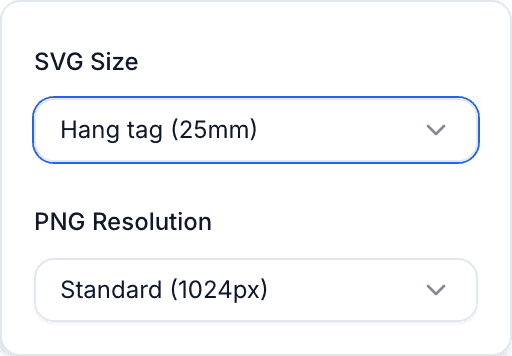
Export options offers SVG size presets matched to common textile applications:
| Preset | Size | Use for |
|---|---|---|
| Care label | 20mm | Sewn-in care and composition labels, unless the code needs more |
| Hang tag | 25mm | Hang tags and swing tickets (the default) |
| Large | 30mm | Packaging, inserts, larger labels |
| Custom | From the code's smallest print size up to 200 mm | Anything else |
The QR panel shows each code's smallest print size beside the download buttons. Longer URLs, such as one that carries a serial number, need a larger code. A preset below that size is not offered, and a smaller custom size is refused.
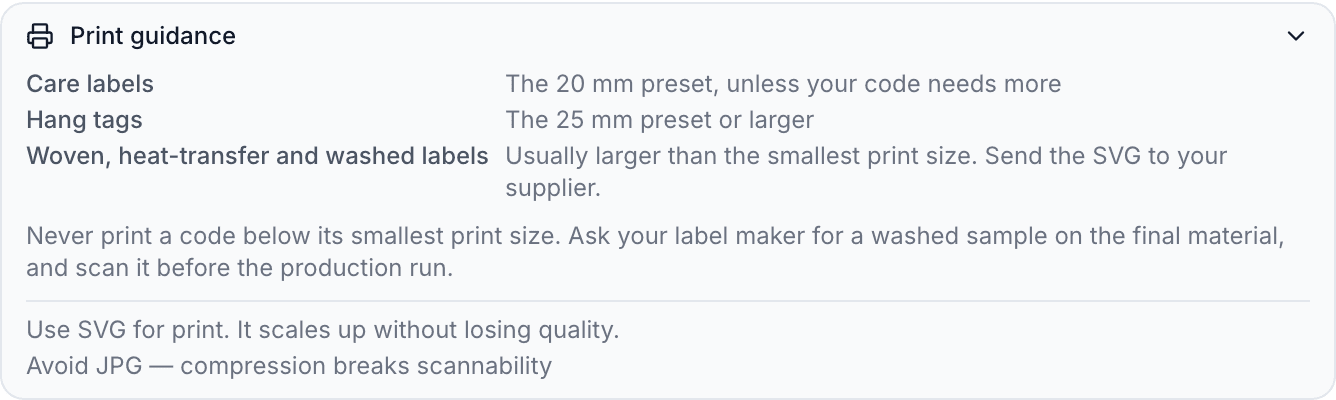
The expandable Print guidance section in the QR panel says which preset suits a care label or a hang tag. It repeats that a code is never printed below its smallest print size. It also says that woven, heat-transfer and washed labels usually need a larger code. For woven labels, send the SVG to your supplier rather than a raster file, since weaving needs the vector outlines.
Bigger is safer. A QR code that scans fine on screen can fail at 15mm on a curved, creased, or textured surface.
Print quality essentials
PassportCraft generates codes that are already print-hardened:
- High error correction (level H): the code can still be read when part of it is damaged, which matters on fabric labels that crease and abrade.
- A built-in quiet zone — the white border around the code is part of the standard, not empty space. Never let artwork, text, or label edges intrude into it.
- Black on white — maximum contrast. If your designer recolors the code, keep dark modules on a light background, never the reverse.
And the universally safe practices on top:
- Print at or above the smallest print size the panel shows, and larger on woven, heat-transfer or washed labels.
- Avoid placing the code across a seam or fold line.
- Matte finishes scan more reliably than glossy ones under direct light.
Serial numbers
If the passport's optional Serial Number field is filled, the QR code automatically encodes the item-level form of the URL, /01/{GTIN}/21/{serial}, instead of the product-level /01/{GTIN}. There's no separate toggle: the encoded URL follows the passport's data. If you serialize, each serial number needs its own passport record with a matching Serial Number, or the scanned code won't find it.
One code per size or colour
If the passport carries sizes and colours, Review & publish shows a block headed N variant QR codes in place of the passport's single QR code. Each saved barcode has its own code, because each one encodes its own /01/{GTIN} URL and a scan names the size and colour scanned.
- Click Download codes to expand the list.
- Set the File format, SVG · print or PNG · image, and open Export options for the size or resolution. One choice applies to every download in the block.
- Click Download all (N) for every entry, or tick rows and click Download selected (N). Lists over eight rows get a search box and Select this page. Each row also has its own Download SVG or Download PNG button.
The ZIP is named after the product, {product}-variant-qr-codes.zip, and holds one image per entry plus manifest.csv, which lists each filename with its barcode, size, colour and encoded URL. Open the CSV with the barcode column as text to keep leading zeroes. For a draft, the block reads "Publish this passport before using these codes on product labels. Downloading does not publish it." How entries are added is covered in Sizes and colours under one passport.
Downloading in bulk
From the Passports page you can export many codes at once. A product sold in sizes or colours gets one code per size or colour, the same codes as the block described above.
- Select passports with the checkboxes — or select none to export everything in the current view.
- Click Download QR Codes (in the toolbar on the All and Published tabs, or in the action bar that appears when passports are selected).
- You get
passportcraft-qr-codes.zip, with one print-ready SVG per passport at 25 mm, or larger when a long URL needs it. It also holds aREADME.txtwith the print guidelines, the files' smallest print size, and a list of any passports that don't have a GTIN yet.
For a battery model, the ZIP holds a folder instead, with one file per battery named by its serial number, and no code for the model itself. A battery model with no serial numbers yet gets no code, and the README.txt names it.
For a product sold in sizes or colours, the ZIP holds a folder with one file per size or colour, and no code for the product itself.
If unpublished passports are in your selection, the action bar warns you: "Some selected passports are not published. Their QR codes won't resolve until published." The files still export (useful for preparing label artwork ahead of a launch), but remember the codes only go live when the passports do. See Drafts vs published passports for how the two states behave.
Test before mass printing
One scan now saves a reprint later
Before committing to a production run of labels or hang tags, print one physical sample at final size on the final material, and scan it with a normal phone camera in normal lighting. A code that scans on your monitor proves nothing about a 20mm code woven into a textured label.
A sensible pre-print checklist:
- The passport is published and scanning your test print opens the live passport page.
- The GTIN on the passport matches the product the label goes on.
- The printed size is at or above the code's smallest print size, with the quiet zone intact.
- The file sent to the printer is the SVG (or the PNG — never a JPG conversion).
If the test print won't scan, work through QR code not scanning to find the cause before changing your artwork.
For the bigger picture of how these codes fit the EU's labelling rules, see our guide to product passport QR codes and GS1 Digital Link.
Frequently asked questions
Does each size or colour get its own QR code?
Yes, when the passport carries sizes and colours. Review & publish then lists one code per saved barcode instead of a single passport code: download a single row as SVG or PNG, or Download all as a ZIP with a manifest.csv that maps each file to its barcode, size, colour and URL. Downloading does not publish the passport.
Should I download SVG or PNG?
SVG for anything that goes to print. It is a vector format, so it scales up without losing quality. Label suppliers can place it directly into their artwork. Never print it below the smallest print size the QR panel shows. PNG is for digital use: web pages, emails, presentations, or print workflows that can't handle vector files.
Does the QR code change if I edit my passport?
No. The QR code encodes a URL built from your GTIN (and serial number, if set), not the passport's content. Edit and republish as much as you like — printed codes keep working. The code only changes if you change the GTIN or Serial Number themselves. Once your own domain is live, new downloads carry that domain; codes printed before still work.
Can I print the QR code in my brand colors?
Downloads are black on white, which is the safest combination for scanning. If your label supplier recolors the code, keep the contrast high (dark modules on a light background) and test a physical sample before committing to a production run.