Publishing a passport
Last updated October 26, 2026
What publishing means
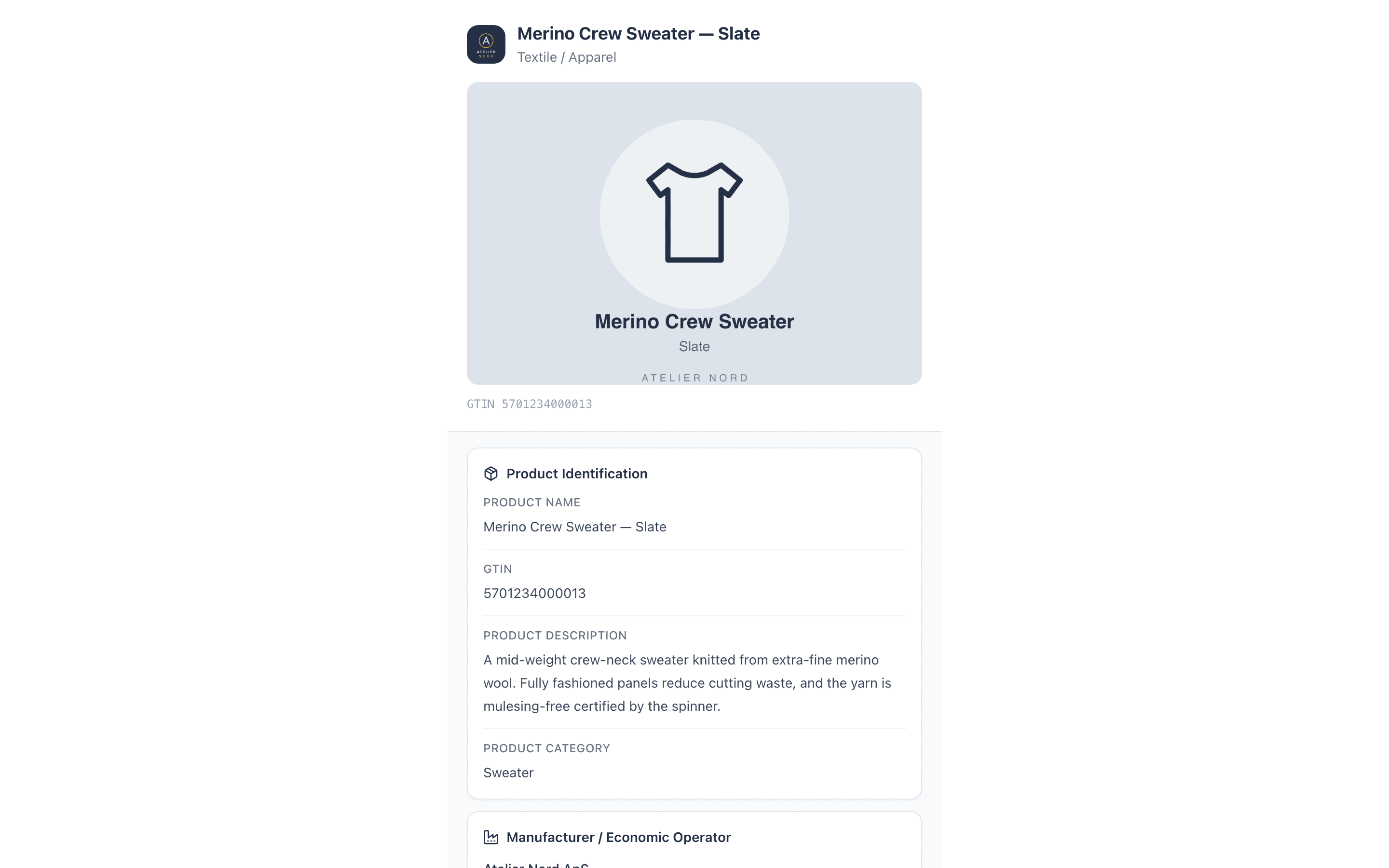
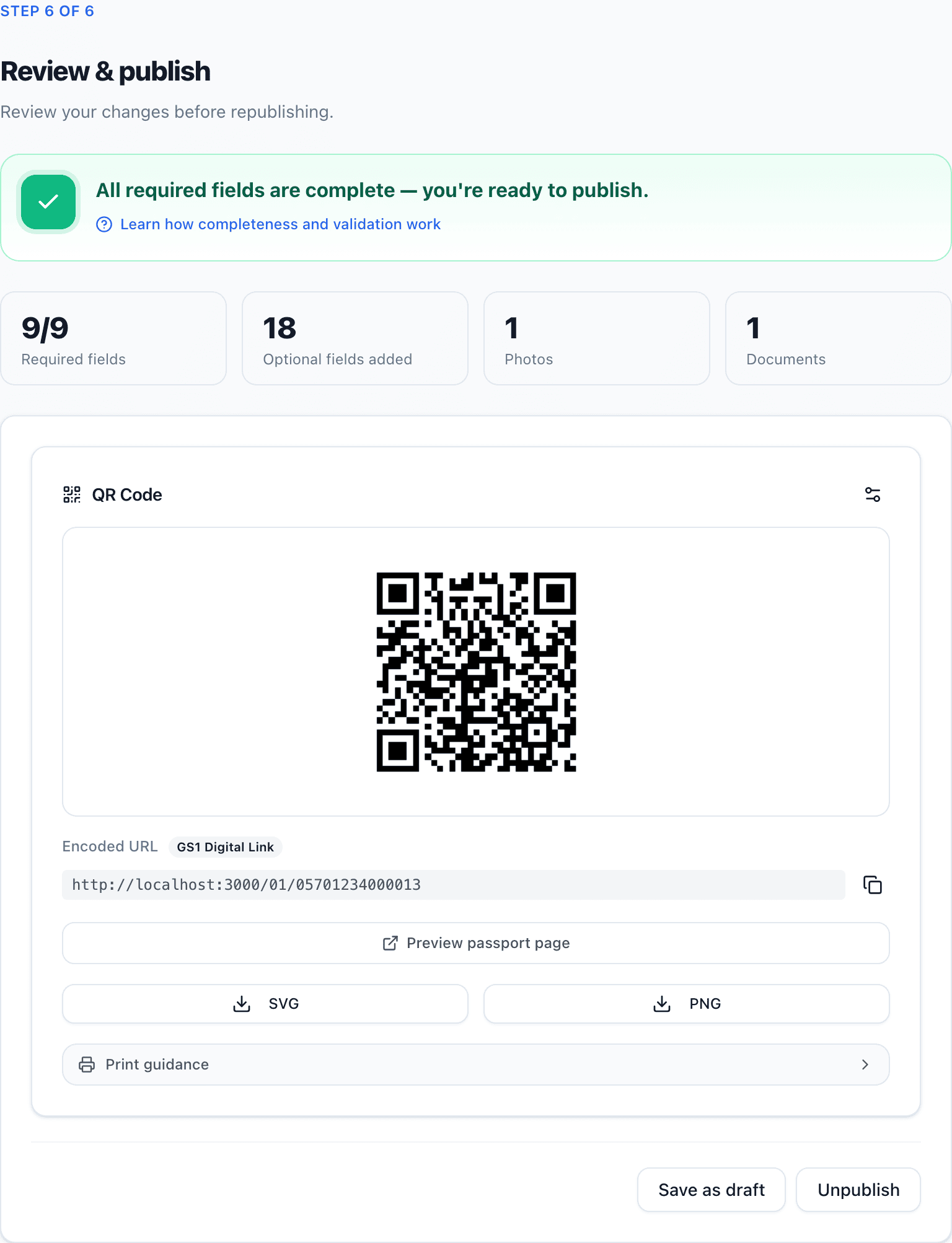
A published passport is publicly accessible — anyone who scans its QR code or opens its link sees the passport page. The QR code encodes a GS1 Digital Link URL built from your GTIN:
passportcraft.com/01/{your GTIN}— the GTIN is padded to 14 digits automaticallypassportcraft.com/01/{your GTIN}/21/{serial}— when the passport also has a Serial Numberpassportcraft.com/01/{a size's GTIN}— when the passport carries sizes and colours, each entry's own barcode opens the same passport and names the size and colour scanned
Once your own domain is live, these URLs carry that domain instead of passportcraft.com, for example dpp.yourbrand.com/01/{your GTIN}. Codes downloaded before that point keep working at passportcraft.com.
Until you publish, the editor's QR panel says "This link will work once the passport is published." The code exists, but scanning it won't resolve to a live page yet. A passport with sizes and colours shows one code per size or colour there instead. A battery passport shows one code per battery instead. Publishing takes the passport and all of its sizes and colours live together, and unpublishing takes them all offline together.
Before you publish
Two things must be true:
- All required fields are complete. The completeness meter in the editor header must read Ready to publish. Fields that still block publishing are marked To publish and listed in the Review step.
- The passport has a GTIN. A GTIN is optional for drafts but required to publish, because the QR code's GS1 Digital Link URL is built from it. For a product sold in sizes or colours, one saved size or colour with its own barcode meets this requirement instead.
If either is missing, the Publish button stays disabled — see Why can't I publish my passport? for a full list of blockers.
How to publish
- Open the passport in the editor.
- Go to Review & publish — the final step of the Guided view. It summarises anything still needed and shows your QR code.
- Click Publish.
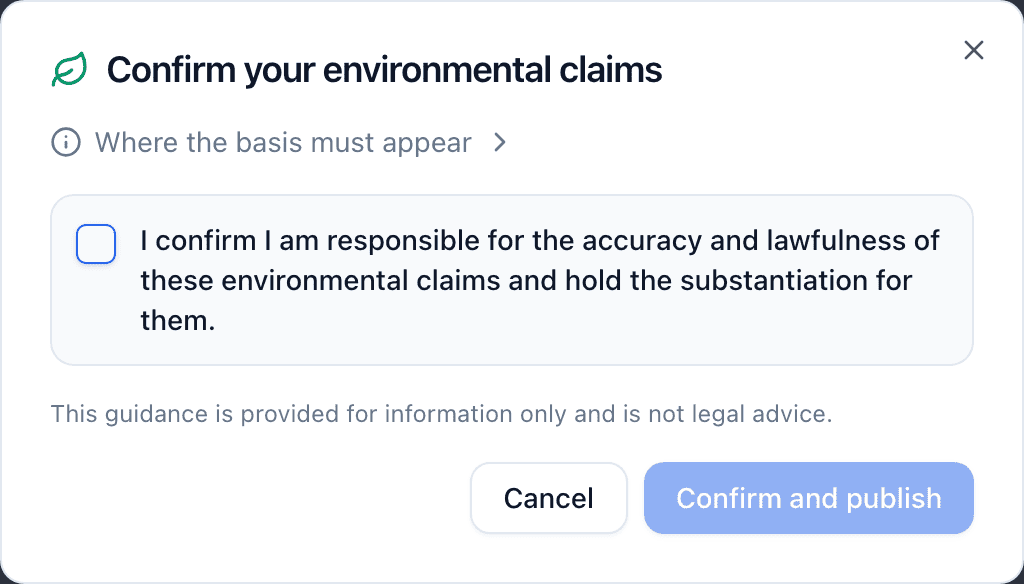
- If your passport contains environmental claims (for example a carbon footprint or a sustainability statement), a dialog titled "Confirm your environmental claims" appears first. It asks you to confirm you are responsible for the accuracy and substantiation of those claims, as the EU Green Claims rules require. Confirm to continue.
- You'll see "Passport published successfully", and the passport's status changes to Published.
If the passport carries sizes and colours and an entry is added or removed while you are publishing, publishing stops with "Sizes or colours changed while you were reviewing. Review them again before publishing." The passport stays a draft; click Publish again to publish the current list.
Publish limits by plan
Each plan covers a number of published passports. Drafts are unlimited on every plan.
| Plan | Published passports |
|---|---|
| Free | 3 |
| Starter | 50 |
| Pro | 500 |
| Scale | 3,000 |
When you reach your limit, publishing another passport shows a Publish limit reached dialog. You can upgrade in Settings → Billing, or unpublish a passport you no longer need to free a slot.
Downloading your QR code
After publishing, download the QR code from the editor's QR panel as SVG or PNG. Use SVG for anything that goes to print. It scales up without losing quality, but never print it below the smallest print size the panel shows. Presets cover care labels (20 mm), hang tags (25 mm) and larger formats.
Unpublishing
Click Unpublish on a published passport to take it offline. The passport returns to draft status and its slot is freed.
Unpublishing takes live QR codes offline
Once unpublished, anyone scanning the passport's QR code sees a neutral "This Digital Product Passport is not available" notice instead of the passport until you publish it again — including on codes already printed on labels and hang tags in circulation. Only unpublish a passport whose QR code is on physical products if you really intend to take it offline.
New to the editor? Start with Creating your first passport.
Frequently asked questions
Do I need a GTIN to publish?
Yes. You can save drafts without one, but publishing requires a GTIN so the QR code can use the GS1 Digital Link format. Add it in the Product basics section. For a product sold in sizes or colours, one saved size or colour with its own barcode meets the requirement instead.
Do drafts count against my publish limit?
No. Only published passports count. You can keep as many drafts as you like, and unpublishing a passport frees its slot immediately.
Can I edit a passport after it's published?
Yes. You can keep editing a published passport and your changes save to the live passport. If you'd rather take it offline while you rework it, click Unpublish first.