Why can't I publish my passport?
Last updated October 26, 2026
Start with the Review & publish step
Open your passport and go to Review & publish, the final step of the Guided view. If anything blocks publishing, this step shows a count like "3 fields still needed to publish" with a list that jumps you straight to each field. You can also click Explain what's missing for guidance on how to fill the remaining fields.
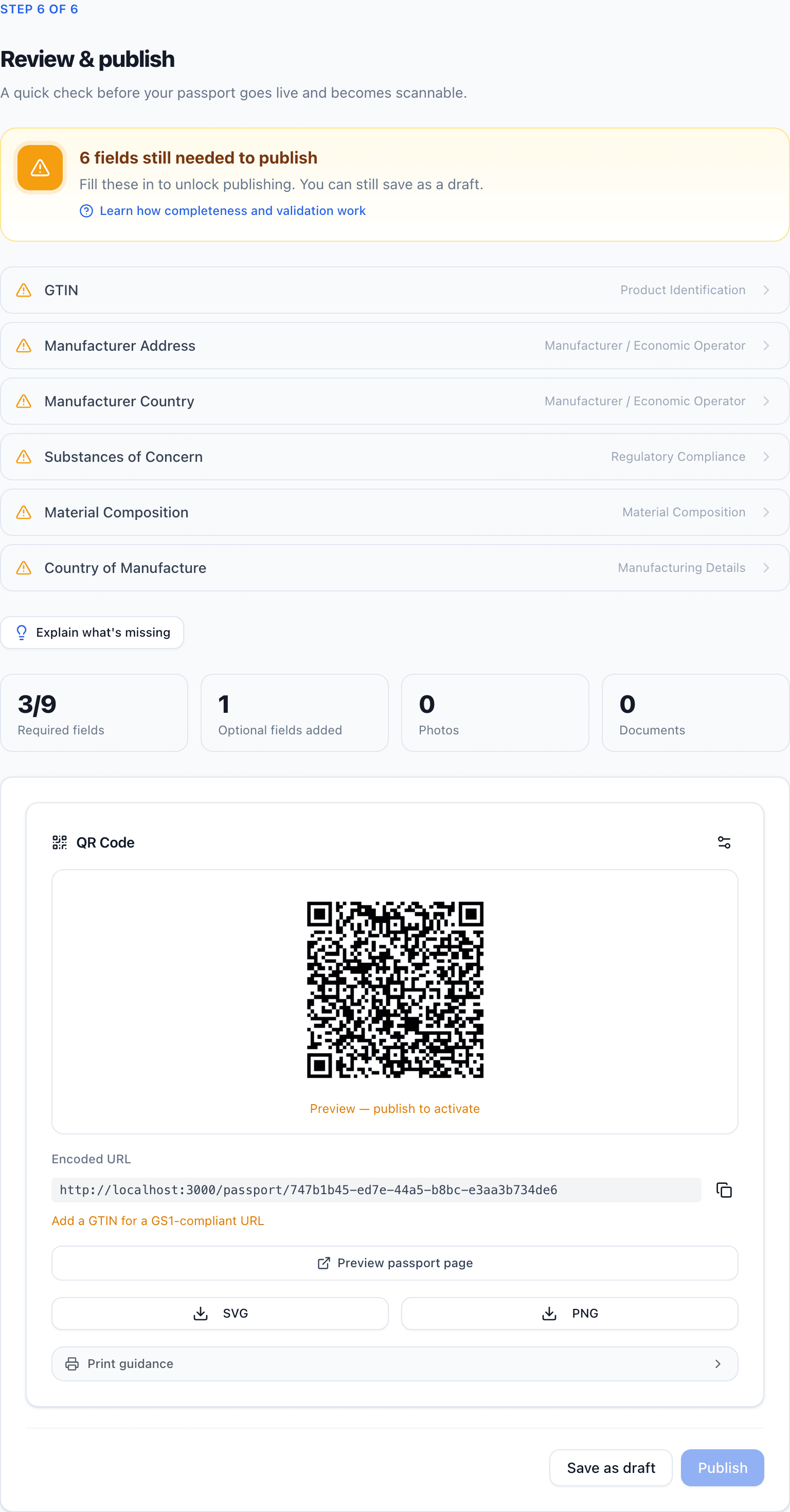
If the Review step says Ready to publish but publishing still fails, skip ahead to causes 4 and 5 below.
Cause 1: Required fields are incomplete
Symptom: The Publish button is disabled. Hovering over it shows "Complete all required fields to publish."

Every passport has a set of fields marked To publish that must be filled before it can go live. For a textile passport, these are Product Name, GTIN, Product Description, the manufacturer details, Substances of Concern and Material Composition.
Fix:
- Open the Review & publish step.
- Click each entry in the missing-fields list to jump to it.
- Fill the field — the list and the completeness meter update as you go.
Cause 2: The GTIN is missing
Symptom: The Review & publish step lists GTIN as still needed. If you edit the GTIN field in Product basics and leave it empty, the editor shows "Enter this product's barcode to publish." under it. For a textile or general product, it adds "If it comes in sizes or colours, enter a barcode for each one instead."
A GTIN is optional while drafting, but publishing requires it because your QR code's GS1 Digital Link URL is built from it.
Fix: Enter the GTIN in the Product basics section. PassportCraft accepts 8-, 12-, 13-, or 14-digit GTINs and normalizes them automatically. For a product sold in sizes or colours, one saved size or colour with its own barcode meets this requirement instead. Sizes and colours under one passport shows how to add them.
Cause 3: A field fails validation
Symptom: A field is filled in, but an error message appears next to it and the passport stays "Not ready".
Common examples:
- Material composition must sum to 100% (within ±0.5%) — adjust the fibre percentages.
- Invalid GTIN format — check for typos or a wrong digit count.
- Carbon footprint unit is required when a carbon footprint value is provided — add the unit alongside the value.
Fix: Follow the inline message on each flagged field. Validation reruns as you type.
Not every message blocks publishing, though. Advisories — for example a PFAS declaration that conflicts with your substances list, or wording suggestions on environmental claims — are flagged for your review but never disable the Publish button. If everything you're seeing is an advisory, the real blocker is one of the other causes on this page. The difference between errors and advisories is explained in Completeness and validation.
Cause 4: You've reached your plan's publish limit
Symptom: A dialog titled "Publish limit reached" appears when you click Publish.
Each plan covers a fixed number of published passports: 3 on Free, 50 on Starter, 500 on Pro, and 3,000 on Scale. Drafts don't count.
Fix: Either upgrade your plan in Settings → Billing, or unpublish a passport you no longer need — that frees a slot immediately. Details in Publishing a passport.
Cause 5: There's a payment issue on your subscription
Symptom: A "Payment issue" notice appears instead of publishing, saying there's an issue with your payment.
When a subscription payment fails, you keep your plan while Stripe retries. If the payment is still unresolved 7 days after the first failed charge, publishing is paused until it's fixed. An account still on our earlier Terms gets 14 days, and the email about the failed payment says which applies to you.
Fix: Go to Settings → Billing and update your payment method. Publishing resumes as soon as the payment goes through.
Still stuck?
If none of these match what you're seeing, double-check that your role allows editing — viewers can open passports but can't publish them. And if you're new to the flow, the walkthrough in Creating your first passport shows where everything lives.
Frequently asked questions
The Publish button is grayed out — what does that mean?
One or more required fields are incomplete. Hover over the button to see the message 'Complete all required fields to publish', then open the Review & publish step — it lists exactly which fields are still needed and jumps you to each one.
I'm at my publish limit but don't want to upgrade. What can I do?
Unpublish a passport you no longer need. Only published passports count against the limit, so unpublishing one frees a slot immediately.
Is the environmental claims dialog an error?
No. If your passport contains environmental claims, PassportCraft asks you to confirm responsibility for them before going live, as the EU Green Claims rules require. Confirm the statement and publishing continues normally.