Pasaport editörü: Rehberli ve Tek sayfa görünümleri
Son güncelleme: 9 Ekim 2026
İki görünüm, tek pasaport
İstediğiniz zaman geçiş yapmak için editörün üst kısmındaki geçişi kullanın:
- Rehberli (varsayılan) sizi her seferinde bir bölüm boyunca, Geri ve Devam düğmeleriyle ve "7 adımdan 2. adım" gibi bir adım göstergesiyle yönlendirir. İlk pasaportlarınız için idealdir.
- Tek sayfa, her bölümü tek bir sayfada üst üste dizer; böylece bölümleri istediğiniz sırada doldurabilirsiniz. Alanları bildiğinizde ve hızlı ilerlemek istediğinizde idealdir.
İki görünüm de aynı verileri düzenler ve editör son seçiminizi hatırlar. Başlık ayrıca pasaportun herkese açık sayfasını yeni bir sekmede açan bir Önizleme düğmesi de barındırır — siz yayınlamadan önce o sayfayı kimin görebileceğini görmek için Taslak ve yayınlanmış pasaportlar bölümüne bakın.
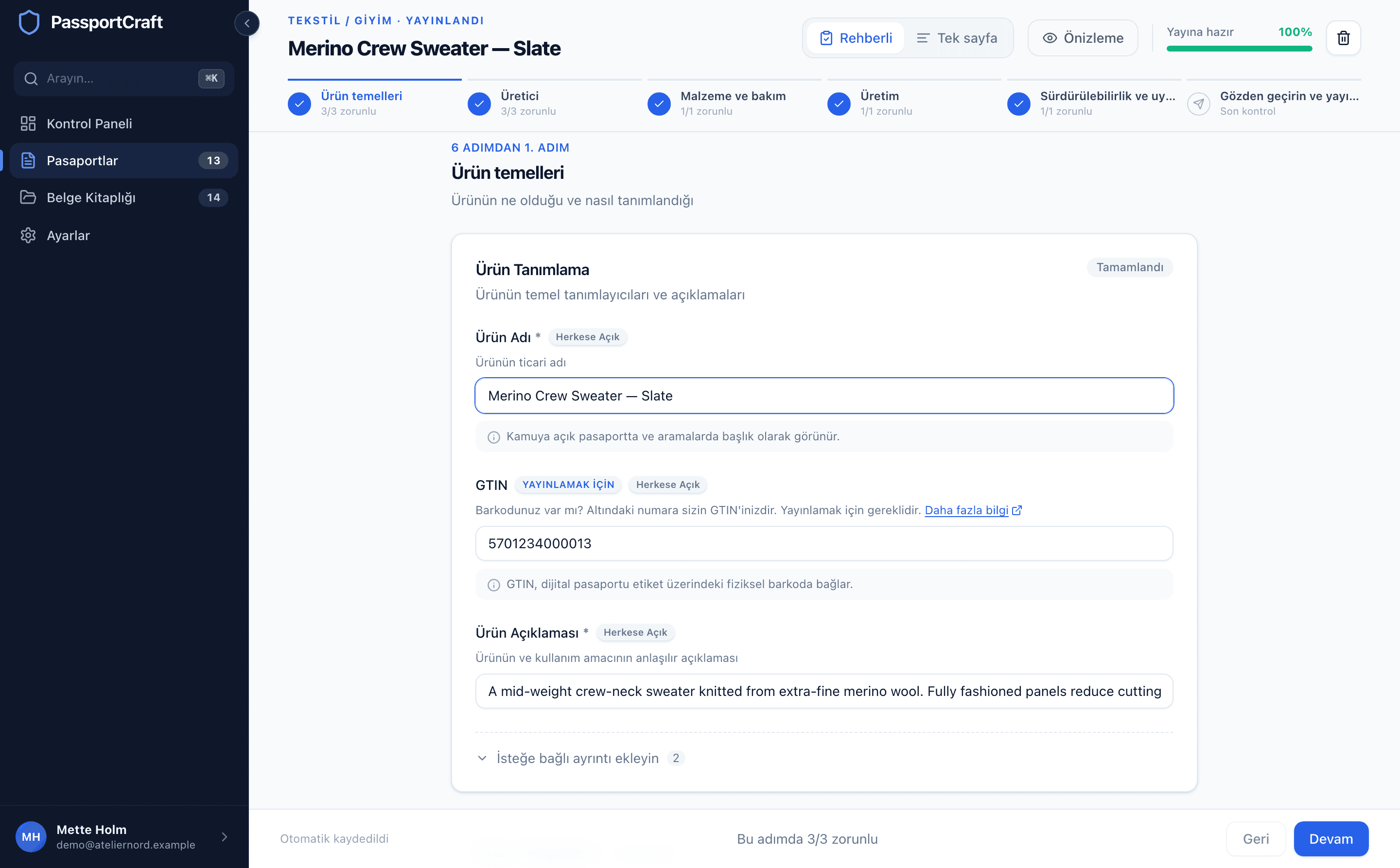
Bölümler
Bir tekstil pasaportunun, son bir inceleme adımına ek olarak altı içerik bölümü vardır:
- Ürün temelleri — ürünün ne olduğu ve nasıl tanımlandığı, ayrıca ürün fotoğrafları. Birden fazla beden veya renkte satılan bir üründe, her birinin kendi barkodunu aldığı yer de burasıdır; bkz. Tek pasaport altında bedenler ve renkler.
- Üretici — kimin ürettiği ve nerede bulunduğu.
- Malzeme ve bakım — lif bileşimi ve bakım talimatları.
- Üretim — nerede ve nasıl üretildiği.
- Sürdürülebilirlik ve uyumluluk — çevresel veriler ve düzenleyici uyumluluk, ayrıca belgeler ve sertifikalar.
- Ek bilgiler — çalışma alanınızın her ürüne eklediği alanlar; örneğin garanti süresi, yedek parça bulunabilirliği veya kullanım kılavuzu bağlantısı. Eklediğiniz bir alan, çalışma alanınızdaki her ürün için geçerlidir.
- Gözden geçirin ve yayımlayın — son kontrol, QR kodunuz ve Yayımlayın düğmesi.
Bir Genel Ürün pasaportu, alanları kendi şemasında bulunmadığından, tekstile özgü bölümler (Malzeme ve bakım ile Üretim) hariç aynı yapıyı kullanır. Her pasaport, inceleme adımından önce yine de Ek bilgiler bölümüyle biter.
Otomatik kaydetme
Bir kaydet düğmesi yoktur. Değişiklikler, yazmayı bıraktıktan yaklaşık bir saniye sonra otomatik olarak kaydedilir ve editörün altındaki durum çubuğu Kaydediliyor... ve Kaydedildi arasında geçiş yapar. Boştayken Otomatik kaydedildi yazar. Önizlemeyi açmak veya uygulamada başka bir yere gitmek, bekleyen tüm değişiklikleri önce kaydeder; sekmeyi kapatıyorsanız yalnızca Kaydedildi yazısının görünmesini bekleyin.
Yayımlanmış bir pasaporttaki değişiklikler herkese açık sayfasına hemen yansır. Çevirileri, yazmayı bıraktıktan kısa süre sonra güncellenir. Güncellenemezlerse editör bir Çevirileri güncelleyin düğmesi gösterir.
Kaydetme başarısız olursa şu mesajı görürsünüz: "Değişiklikleriniz kaydedilemedi. Bağlantınızı kontrol edip tekrar deneyin." — düzenlemeleriniz, kaydetme tamamlanana kadar editörde kalır.
Bedenler ve renkler farklı çalışır. Bunlar yalnızca Bedenler ve renkler panelinde N kayıt ekleyin düğmesine tıkladığınızda kaydedilir ve panel bunu "N kayıt eklendi." ile doğrular. Panele yazdığınız ama eklemediğiniz satırlar, editör oturumunuz boyunca orada kaydedilmemiş hâlde durur. Bu kayıtların QR kodları Gözden geçirin ve yayımlayın adımından indirilir.
Tamamlanma göstergesi
Editör başlığındaki çubuk, yayınlamadan önce çözülmesi gereken her şeyin ne kadarının tamamlandığını gösterir: yayınlamak için zorunlu alanlar ve doldurmak zorunda olmadığınız hâlde bir hatanın yayımlamayı reddettiği her alan. Bir alan, hem bir değere sahip olduğunda hem de doğrulamadan geçtiğinde tamamlanmış sayılır; hatalı doldurulmuş bir alan sayılmaz. %100'de etiket Yayına hazır olarak değişir.

Alttaki çubuk da çalışan bir sayım tutar: Rehberli görünümde bölüm başına ("Bu adımda 2/3 zorunlu") ve Tek sayfa görünümünde pasaportun tamamında. Göstergenin tam olarak neyi ölçtüğü ve doğrulamanın neleri denetlediği için Tamamlanma ve doğrulama bölümüne bakın.
Zorunlu ve isteğe bağlı alanlar
Yayınlamadan önce tamamlanması gereken alanlar bir Yayımlamak için rozeti taşır. Diğer her şey isteğe bağlıdır — tamamen isteğe bağlı bölümler "— isteğe bağlı" olarak etiketlenir ve daha az kullanılan alanlar, form derli toplu kalsın diye bir İsteğe bağlı ayrıntı ekle denetiminin arkasında bulunur.

İsteğe bağlı olması gereksiz olduğu anlamına gelmez: ne kadar çok doldurursanız, herkese açık pasaport o kadar yararlı olur. Bir DPP için hangi verilerin toplanacağına dair kılavuzumuz her veri noktasını adım adım açıklar. Ancak bunların hiçbiri bir taslağı engellemez ve yayınlamayı yalnızca Yayımlamak için alanları engeller.
Yapay zeka destekleri nerede görünür
Editöre üç destek yerleştirilmiştir. Her biri öneride bulunur; siz inceleyip neyi uygulayacağınıza karar verirsiniz — siz kabul etmeden pasaportunuza hiçbir şey yazılmaz veya yayınlanmaz.
- Uyumlu ifade öner, ifadeniz bir çevresel beyan uyarısını tetiklediğinde bir metin alanının altında görünür. Kendi metninizin yeniden yazımlarını önerir; Bu ifadeyi kullanın ile birini seçer veya mevcut hâlinizi korursunuz.
- Bakım sembolleri öner, siz bir miktar yazdığınızda serbest metinli bakım talimatlarının altında görünür. Eşleşen ISO 3758 sembollerini önerir ve uygulamak, bakım sembolü seçiminizi önerilen listeye ayarlar.
- Eksik bilgileri açıklayın, alanlara hâlâ ihtiyaç duyulduğunda Gözden geçirin ve yayımlayın adımında yer alır. Her eksik alanın ne olduğunu, neden gerekli olduğunu ve nasıl elde edileceğini açıklar — bilgilendirici rehberlik, hukuki tavsiye değil.
Yapay zeka önerileri kararlar değil, taslaklardır
Editördeki her yapay zeka paneli bunu açıkça belirtir: öneriler kendi metninizden üretilir ve yayınladıklarınızdan siz sorumlu olmaya devam edersiniz. Uygulamadan önce inceleyin.
Yayına almaya hazır mısınız? Pasaport yayınlama, Gözden geçirin ve yayımlayın adımını, QR kodlarını ve plan limitlerini kapsar.
Sık Sorulan Sorular
Bir kaydet düğmesi var mı?
Pasaport alanları için yok: değişiklikler, yazmayı bıraktıktan yaklaşık bir saniye sonra otomatik olarak kaydedilir ve editörün altındaki durum çubuğu önce Kaydediliyor... sonra Kaydedildi yazısını gösterir. Bedenler ve renkler bunun istisnasıdır. Bunlar, Bedenler ve renkler panelinde N kayıt ekleyin düğmesine tıkladığınızda kaydedilir, asla kendiliğinden değil.
Bir alandaki Yayımlamak için rozeti ne anlama gelir?
O alan, pasaport yayınlanmadan önce tamamlanmış olmalıdır. Onsuz taslakları kaydedebilirsiniz, ancak her Yayımlamak için alanı doldurulup geçerli olana kadar Yayımlayın düğmesi devre dışı kalır.
Rehberli ve Tek sayfa arasında geçiş yaptığımda veri kaybeder miyim?
Hayır. Her iki görünüm de tam olarak aynı verileri düzenler — geçiş yalnızca bölümlerin nasıl düzenlendiğini değiştirir. Editör ayrıca en son hangi görünümü kullandığınızı hatırlar.